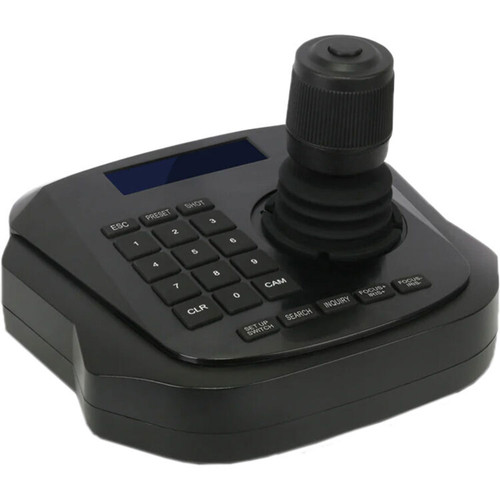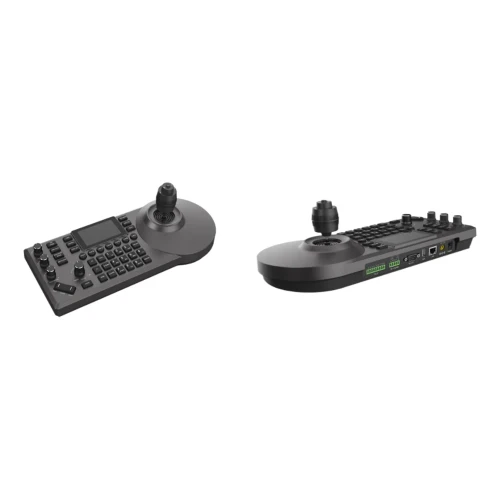






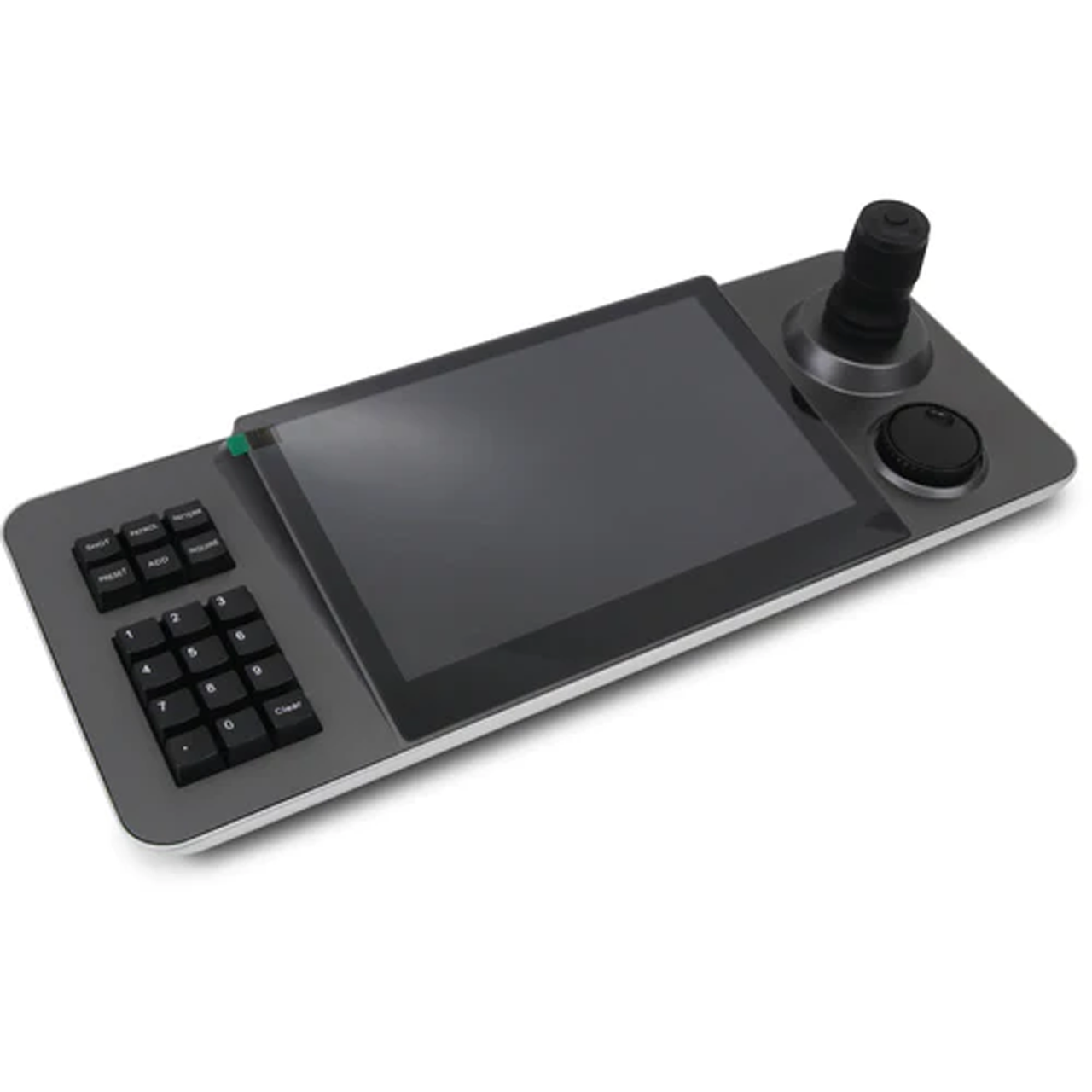


This DVDO Camera-Ctl-1 PTZ Camera Controller with Touch Screen and Joystick is a network based touch keyboard with a 10.1-inch capacitive touch screen and simple user interface. The integrated touch screen can provide real-time previews from camera feeds, and the system can output the image to an external display via HDMI. It supports single viewing of H.265 4K@30fps or H.264 1080p@60fps; and 4-channel 720p@30fps. The system includes a joystick for PTZ control, and is suitable for unified control where multiple network cameras are installed such as schools, hospitals, hotels, businesses, etc.
DVDO Camera-Ctl-1 PTZ Camera Controller with Touch Screen and Joystick Features:
- 10.1-inch capacitive touch screen
- Android 6.0 operating system
- H.265/H.264 decoding, up to 4 screen partitions
- Supports viewing images on the touch screen or external display via HDMI
- Network access to full range of PTZ cameras
- PTZ control, preset, cruise, track setting and recall
- Supports ONVIF, Pelco-D, Pelco-P and Visca protocols
- Controls up to 1024 cameras
- Supports external mouse
Why not buy this DVDO Camera-Ctl-1 PTZ Camera Controller with Touch Screen and Joystick today?
HDTV Supply partners with DVDO to sell and support all DVDO products
Why not buy this DVDO Camera-Ctl-1 PTZ Camera Controller with Touch Screen and Joystick today?
1.Can I display the controller’s live preview on an external monitor?
A: Yes; the controller can output the image to an external display over its HDMI port for synchronized viewing.
2.Does the keyboard provide local previews on its touch panel while outputting to HDMI at the same time?
A: Yes; it supports viewing images on the touch screen or an external display via HDMI, implying synchronized local and external viewing.
3.What network-camera control protocols does this unit support for PTZ commands?
A: It supports ONVIF plus the Pelco-D, Pelco-P and Visca control protocols for PTZ control.
4.How do I add IP cameras to the controller—can it search the network automatically?
A: Yes; the unit offers an Auto Search/Quickly Add function to discover IP cameras and then lets you enter credentials to save them.
5.Can I add cameras manually if auto-search doesn’t find them?
A: Yes; you can use Manually Add to enter device name, IP address, ONVIF port, username and password and then save the device.
6.Does the keyboard require the controller and cameras to be on the same IP network segment?
A: Yes; the keyboard’s IP address must be on the same network segment as the PTZ camera(s).
7.What wired control ports are available for serial PTZ control, and what are they used for?
A: The unit provides RS-232 and RS-485 ports for Pelco-D, Pelco-P and Visca control, and an HDMI port for external display.
8.How do I remove a camera once it’s been added?
A: Use the Device Management screen: select the added device’s IP address, click Delete, then confirm OK to remove it.
9.Can I control PTZ functions like presets, cruise and tracking from this keyboard?
A: Yes; the controller supports PTZ control including preset, cruise, track setting and recall.
10.Can I use a regular USB mouse with this controller for operation?
A: Yes; the keyboard supports an external mouse via its USB port.
How is system software updated on the keyboard?
A: You copy the upgrade file to a USB flash drive, insert it into the keyboard’s USB port, then use System Update and Install to apply the update.