



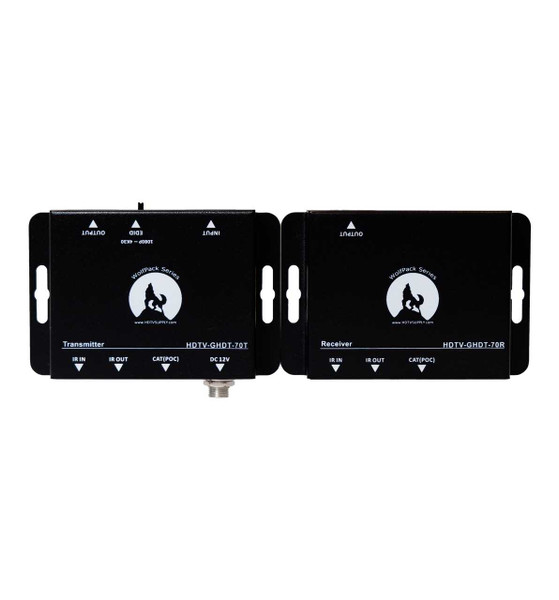


WolfPack 4K30 HDMI Extender — 120 ft over CAT6
Extend a 4K@30Hz HDMI signal up to 120 feet over a single CAT6 cable — with Bi-Directional IR, EDID Management, Power over Cable (POC) & HDMI Loopout. The TX/RX kit needs only one power supply (POC powers the receiver through the CAT6 cable), supports two-way IR remote control pass-through, and mirrors the source to a local monitor via the transmitter’s HDMI loopout — all over one cable run.



Best For
- Conference rooms, classrooms, and houses of worship where the source device is in a rack or podium and the display is across the room
- Digital signage installations — media player in an equipment closet, display mounted up to 120 feet away
- Home theater setups needing to run HDMI to a projector in a ceiling or adjacent room
- Retail displays, lobbies, and waiting rooms with centralized AV equipment
- HD video production — camera or playback source feeding a remote monitor
Key Features
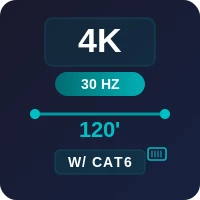
- 4K@30Hz over a single cable: transmits UHD video and multichannel audio up to 120 feet on one CAT6 run — no HDMI cable length limitations.
- Power over Cable (POC): only the transmitter needs a power outlet. The receiver draws power through the CAT6 cable, simplifying installation at the display end.
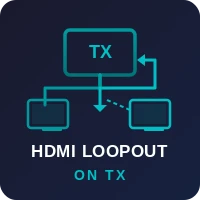
- HDMI loopout on TX: mirror the source signal to a local monitor near the rack without a splitter. Useful for preview monitoring or a second display in the same room.
- Bi-directional IR: control the source from the remote display location (IR pass-back) or control the display from the source location (IR pass-forward) — two-way IR eliminates the need for a separate IR distribution system.
- Built-in EDID management: reduces black screens and handshake failures by presenting a stable EDID to the source, regardless of the remote display's EDID behavior.
- Lossless audio pass-through: supports Dolby TrueHD, DTS-HD Master Audio, Dolby Digital 5.1, DTS, and PCM — send full surround sound to an AVR or soundbar at the display end.
- DVI 1.0 compatible: works with DVI sources via an HDMI-to-DVI adapter (video only, no HDCP on DVI).
- Compact form factor: small TX and RX units fit behind displays, inside podiums, or on rack shelves without dedicated rack space.
Technical Specifications
| Signal | HDMI 1.4 over single CAT6/6A/7 cable (TX & RX kit) |
|---|---|
| Max Resolution | 4K@30Hz (3840×2160), plus 3D, 1080p/i, 720p, 576p/i, 480p/i |
| Extension Distance | Up to 120 ft (36.5 m) at 4K@30Hz over CAT6 |
| Cable Requirement | Single CAT6/6A/7 — solid-core, T568B termination recommended |
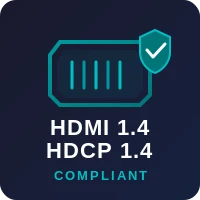
| HDCP | HDCP 1.4 compliant |
| HDMI Version | HDMI 1.4 (backward compatible with DVI 1.0 via adapter) |
| Audio | HDMI embedded pass-through — Dolby TrueHD, DTS-HD Master Audio, Dolby Digital 5.1, DTS, PCM stereo/multichannel |
| IR Control | Bi-directional IR pass-through (control source from display location and display from source location) |
| EDID | Built-in EDID management for improved source/display compatibility |
| HDMI Loopout | Yes — local HDMI output on transmitter for a second display near the source |
| Power | POC (Power over Cable) — single power supply connects to TX; RX powered through the CAT6 cable |
| Power Supply | DC 5V adapter (included with transmitter) |
Supported Resolutions
| 4K / UHD | 3840×2160@30Hz (4:2:0) |
|---|---|
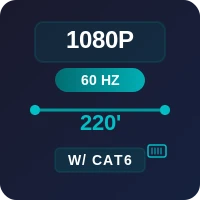
| 1080p | 1920×1080@60Hz, 1920×1080@24Hz (film mode) |
| 1080i | 1920×1080@50/60Hz |
| 720p | 1280×720@50/60Hz |
| SD | 576p, 576i, 480p, 480i |
| 3D | Full 3D pass-through (frame packing, side-by-side, top-and-bottom) |
What You Need
- WolfPack extender kit (TX + RX, included)
- One CAT6/6A/7 cable — up to 120 ft, solid-core recommended, terminated to T568B on both ends
- One HDMI cable from your source device to the TX unit
- One HDMI cable from the RX unit to the remote display
- (Optional) One HDMI cable from the TX loopout to a local monitor
- Power supply (included) — connects to the transmitter only
Installation Steps
- Run the CAT6 cable from the transmitter to the display. Keep cable runs away from high-voltage power lines, fluorescent ballasts, and motors.
- Connect the source to the TX HDMI input using a short HDMI cable.
- (Optional) Connect a local monitor to the TX HDMI loopout port.
- Connect the CAT6 cable to the TX RJ45 port.
- At the display end, connect the other end of the CAT6 cable to the RX RJ45 port.
- Connect the remote display to the RX HDMI output using a short HDMI cable.
- Plug in the power supply to the transmitter. The receiver will power on automatically via POC.
- Connect IR emitters/receivers (if using bi-directional IR) to the IR ports on the TX and RX units.
Recommended Power-On Order
- Power on the remote display first
- Power on the extender (plug in the TX power supply)
- Power on the source device last
This sequence lets the extender detect the display's EDID before the source begins its HDCP handshake, reducing the chance of a black screen on first connection.
Common Issues & Fast Fixes
No picture on the remote display
Verify that the CAT6 cable is securely connected to both the TX and RX RJ45 ports. Confirm the power LED on the transmitter is lit — if not, check the power supply connection. If the TX LED is on but the RX LED is off, the CAT6 cable may be faulty or exceed the 120-foot limit. Try a known-good shorter cable to isolate the issue.
Black screen — display says “No Signal.”
Power-cycle in the correct order: display first, then extender, then source. If the issue persists, check the EDID settings on the extender — try switching to a fixed 1080p EDID profile to rule out resolution-negotiation issues. Also, verify that the HDMI cables at both ends are firmly seated.
Picture on loopout but not on the remote display
This confirms the source and TX are working. The problem is between the TX RJ45 port and the remote display. Check: (1) CAT6 cable termination — both ends should be T568B, (2) cable length is under 120 ft, (3) RX HDMI cable to the display is good, (4) try swapping the RX HDMI cable with a known-good cable.
HDCP error or content blocked
Ensure every device in the chain supports HDCP 1.4: source → TX → CAT6 → RX → display. If the display only supports HDCP 1.3 or older, it may reject the handshake. Try a different HDMI input on the display. Note: 4K content from streaming services typically requires HDCP 1.4 end-to-end.
No audio or wrong audio format
Check the EDID profile on the extender. If it’s set to a stereo-only profile, the source will only send 2-channel audio even if your AVR or soundbar supports surround. Switch to an EDID profile that advertises multichannel audio (Dolby/DTS). Also, verify the display or AVR is set to the correct audio input.
IR remote is not working through the extender
Confirm the IR emitter and receiver cables are connected to the correct ports (IR-TX on the transmitter, IR-RX on the receiver, or vice versa, depending on direction). Make sure the IR emitter is positioned with line of sight to the device’s IR sensor. Check that the IR frequency of your remote is within the extender’s supported range (typically 20–60 kHz).
Intermittent signal drops or sparkles
Usually a cable quality issue. Verify: (1) CAT6 cable is solid-core, not stranded patch cable for the full run, (2) all RJ45 terminations are clean and crimped to T568B, (3) the cable does not run parallel to high-voltage power lines or near electrical interference sources, (4) total cable length including patch panels is under 120 ft.
Frequently Asked Questions
How far can I extend a 4K signal with this HDMI extender?
The WolfPack 4K 30 Hz HDMI Extender transmits a 4K@30Hz signal up to 120 feet (36.5 m) over a single CAT6/6A/7 cable. For best results at 4K, use solid-core CAT6 or CAT6A cable terminated to T568B standard.
Do I need two power supplies — one for the transmitter and one for the receiver?
No. This extender supports Power over Cable (POC). Connect the included power supply to the transmitter only — the receiver draws power from the transmitter through the same CAT6 cable that carries the video signal. Only one power adapter is needed.
What is the HDMI loopout on the transmitter for?
The HDMI loopout port on the transmitter outputs a copy of the source signal to a local display. This lets you connect a monitor near the source (e.g., in the equipment rack) while simultaneously sending the signal to the remote display via CAT6.
Can I use CAT5e cable instead of CAT6?
CAT6 or CAT6A cable is recommended for reliable 4K@30Hz transmission at full distance. CAT5e may work at shorter distances or lower resolutions (1080p), but CAT6 provides better shielding and bandwidth headroom for consistent 4K performance.
Does the bi-directional IR work in both directions?
Yes. Bi-directional IR means you can control the source device from the remote display location (IR pass-back) and control the display from the source location (IR pass-forward). This eliminates the need for separate IR distribution systems.
Will this extender work with Apple TV, Roku, Fire TV, and cable boxes?
Yes — the extender is HDMI 1.4 and HDCP 1.4 compliant, which covers most consumer streaming devices, cable boxes, satellite receivers, Blu-ray players, and gaming consoles at resolutions up to 4K@30Hz.
What audio formats does this HDMI extender support?
The extender supports HDMI embedded audio, including lossless formats such as Dolby TrueHD and DTS-HD Master Audio, as well as standard PCM stereo, Dolby Digital 5.1, and DTS surround.
Can I use this for digital signage?
Yes. This extender is well-suited for digital signage installations where the media player is in a centralized equipment closet, and the display is mounted up to 120 feet away. POC simplifies installation since the remote display location does not need a power outlet for the receiver.
Does this work with 4K@60Hz sources?
The extender supports up to 4K@30Hz. If you connect a 4K@60Hz source, the EDID management will typically negotiate down to 4K@30Hz or 1080p@60Hz. For 4K@60Hz extension, see the WolfPack 4K 60 Hz extender lineup.
Need Help Choosing the Right HDMI Extender?
Tell us your source device, display model, and cable run length. We'll confirm this extender fits your setup or recommend the right alternative.
Get a Free RecommendationOr call us: 800-841-9238